How to Make a Phone Number Clickable in WordPress
A clickable phone number in WordPress lets visitors tap your number on mobile devices and call instantly. Instead of manually dialing digits, users click the link, and their phone app opens with your number pre-filled. This works by wrapping your phone number in an HTML anchor tag with a `tel:` protocol. The result is a seamless call initiation that improves user experience (UX) and drives conversions.
3 main benefits of making phone numbers clickable:
- higher conversion rates for call-based businesses,
- better mobile responsiveness, and
- improved local SEO signals.
3 primary uses:
- contact pages,
- header/footer areas, and
- call-to-action buttons throughout your site.
3 key components:
- the phone number itself,
- the `tel:` link protocol, and
- the clickable element (text, button, or icon).
How to Make a Phone Number Clickable in WordPress with HTML
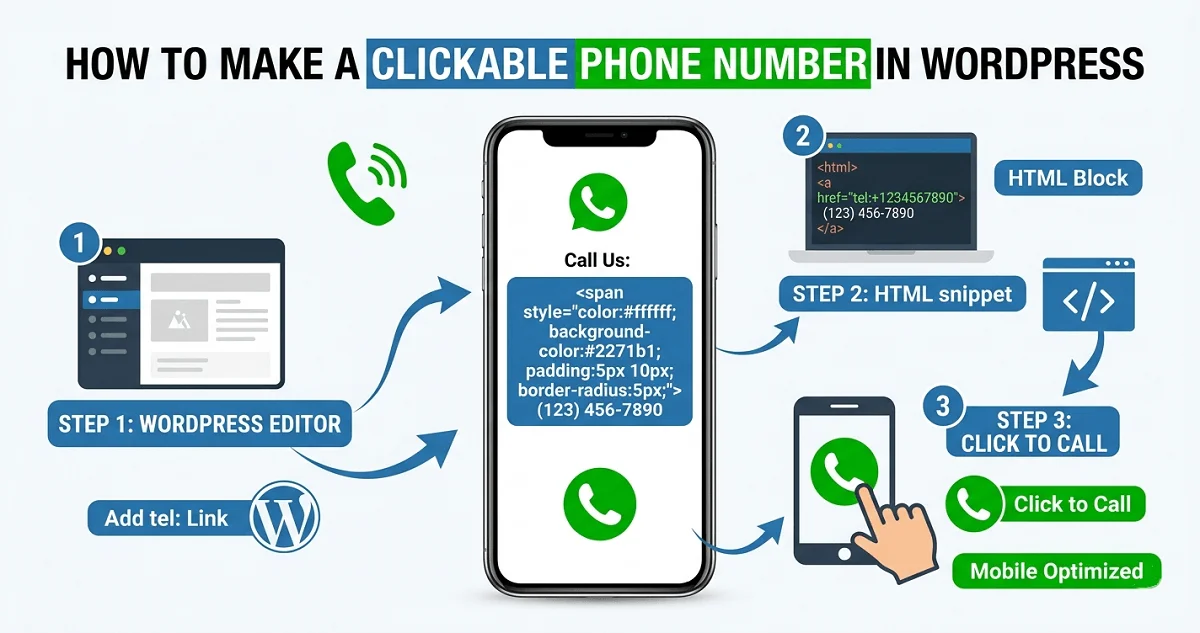
To make a phone number clickable with HTML, wrap your number in an anchor tag using the `tel:` protocol. Open the WordPress block editor (Gutenberg) or any page builder, add a Custom HTML block, and paste this code:
<a href="tel:+15551234567">(555) 123-4567</a>Replace `+15551234567` with your actual number, including country code. The `tel:` prefix tells browsers to initiate a call on click. On desktop, some browsers show a prompt; on mobile, the call app opens directly.
3 formatting rules for tel links:
- Always include the country code (e.g., +1 for US)
- Remove dashes, parentheses, and spaces in the href value
- Keep the display text formatted for readability
For WordPress themes or page builders that strip raw HTML, use a shortcode or plugin. But for most sites, the Custom HTML block works fine.
Where to place your HTML code:
- Header: Use a header footer plugin or theme customizer
- Footer: Paste the HTML block in your footer widget area
- Content: Add it directly in any post or page
- Sidebar: Use a text widget with HTML enabled
Accessibility tip: Add `aria-label=”Call us at (555) 123-4567″` to the anchor tag so screen readers describe the link properly.
How to Make a Phone Number Clickable in WordPress with a Hyperlink
To make a phone number clickable as a hyperlink, use the standard link editor in WordPress. Select your phone number text, click the link icon in the toolbar, and enter `tel:+15551234567` in the URL field.
Step-by-step for Gutenberg block editor:
- Add a Paragraph block with your phone number
- Highlight the number with your cursor
- Click the link button (chain icon) in the toolbar
- Type `tel:+15551234567` in the URL field
- Click Enter to apply
Step-by-step for Classic Editor:
- Type your phone number in the editor
- Select the number
- Click the Insert/Edit Link button
- Enter `tel:+15551234567`
- Click Add Link
For page builders:
Elementor: Use the Text widget or Heading widget. Highlight the number, click the link icon, and enter your tel link. Elementor also has a Button widget where you can set the link to your phone number.
WPBakery Page Builder: Add a Text Block, type your number, highlight it, and use the link tool to add the tel link.
Divi Builder: Use the Text Module or Button Module. In the link field, enter the tel URL.
3 common mistakes to avoid:
- Forgetting the colon after `tel` (correct: `tel:`)
- Adding spaces in the href value
- Using letters or symbols in the number
How to Make a Phone Number Clickable in WordPress with Buttons
A click-to-call button stands out more than a text link. Visitors see a clear call action, which increases tap rates on mobile.
Method 1: Use a plugin for clickable buttons
Install a click-to-call plugin from the WordPress repository. These plugins add a floating call button, sticky header button, or inline button with minimal setup.
3 recommended plugins:
- Click to Chat – WhatsApp and Call button
- Call Now Button – floating click-to-call button
- Sticky Call Button – fixed position button
These plugins handle mobile responsiveness, positioning, and styling. Most include options for custom colors, sizes, and display rules (show on mobile only, hide on desktop).
Method 2: Create a button with Elementor
- Drag a Button widget onto your page
- In the Link field, enter `tel:+15551234567`
- Style the button with your brand colors
- Set the button text to “Call Now” or your phone number
Method 3: Create a button with Gutenberg
- Add a Buttons block
- Click the button text area
- In the link field, enter your tel link
- Customize the button style in the block settings
Method 4: Use a header footer plugin
Plugins like Header Footer Elementor or WPCode let you add a click-to-call button to your site header. This keeps the call button visible on every page.
Best practices for call buttons:
- Use contrasting colors so the button stands out
- Keep button text short (“Call Us” or your number)
- Place the button above the fold on mobile
- Test the button on actual mobile devices
- Add Google Analytics event tracking to measure clicks
For WooCommerce stores: Add a call button on product pages using a custom HTML block or a plugin. This helps customers with questions before purchasing.
For local businesses: Pair your click-to-call button with Google Business Profile and local SEO schema markup. This creates consistency across your online presence and improves local search visibility.
Tracking calls from your button: Use CallRail or Google Analytics with event tracking. Set up a click event that fires when users tap your call button. This data helps measure conversion rate optimization (CRO) efforts.
Mobile-first design consideration: Make sure your call button has a sufficient touch target size. Google recommends at least 48×48 pixels for tap targets. Test on multiple devices to ensure the button is easy to tap without accidental clicks.
AMP compatibility: If you use Accelerated Mobile Pages (AMP), test your call button. Most AMP-compatible plugins work with tel links, but verify functionality after setup.
Schema markup for phone numbers: Add `tel:` links to your schema markup using a plugin like Yoast SEO or Rank Math. This tells search engines your phone number is callable, which can trigger click-to-call in search results.
Fallback for non-clickable environments: Some email clients or PDF viewers don’t support tel links. Display your phone number in plain text alongside the clickable version so users can still call manually if needed.
Security consideration: Tel links don’t pose security risks, but avoid displaying phone numbers in plain text on public pages if spam is a concern. Use a contact form or obfuscate the number with JavaScript for added protection.

Article By
Shahab Ud Din
I am WordPress Speed and Core Web Vitals Expert. I have optimized 150+ WordPress sites over 5+ years, fixing slow load times, failing Core Web Vitals, and poor mobile scores. Best result: mobile LCP from 30.7s → 2.4s in 3 days. I work with business owners, bloggers, and WooCommerce stores who need fast, rank-ready websites, with a No Fix = No Fee guarantee.